1 Overview
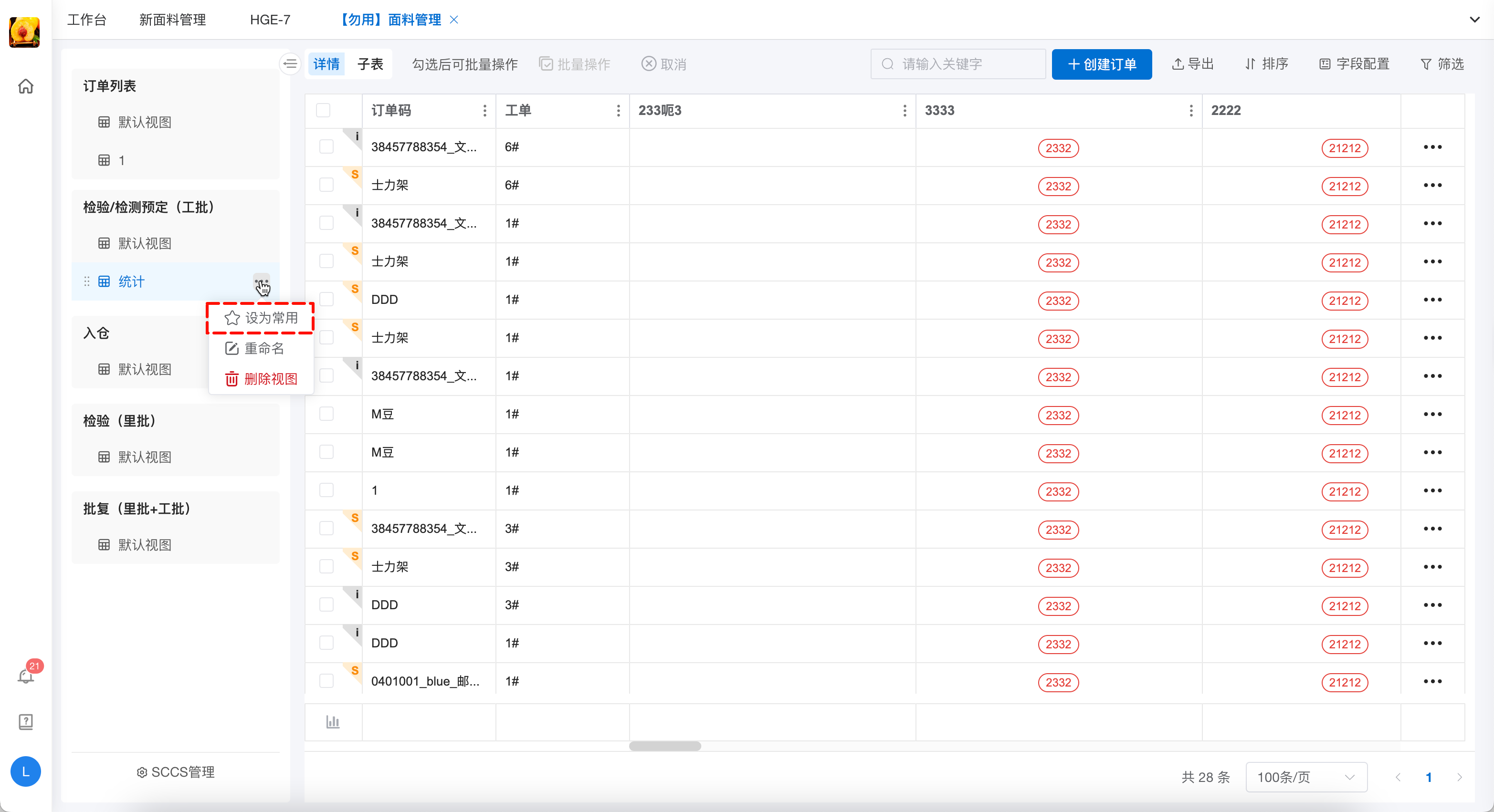
The SCCS List module is the core entry point for users to quickly locate and manage Supply Chain Collaboration Spaces (SCCS) and frequently used views. It integrates the SCCS list and frequently used views to facilitate efficient supply chain collaboration.
2 SCCS List
2.1 Basic Display and Filtering
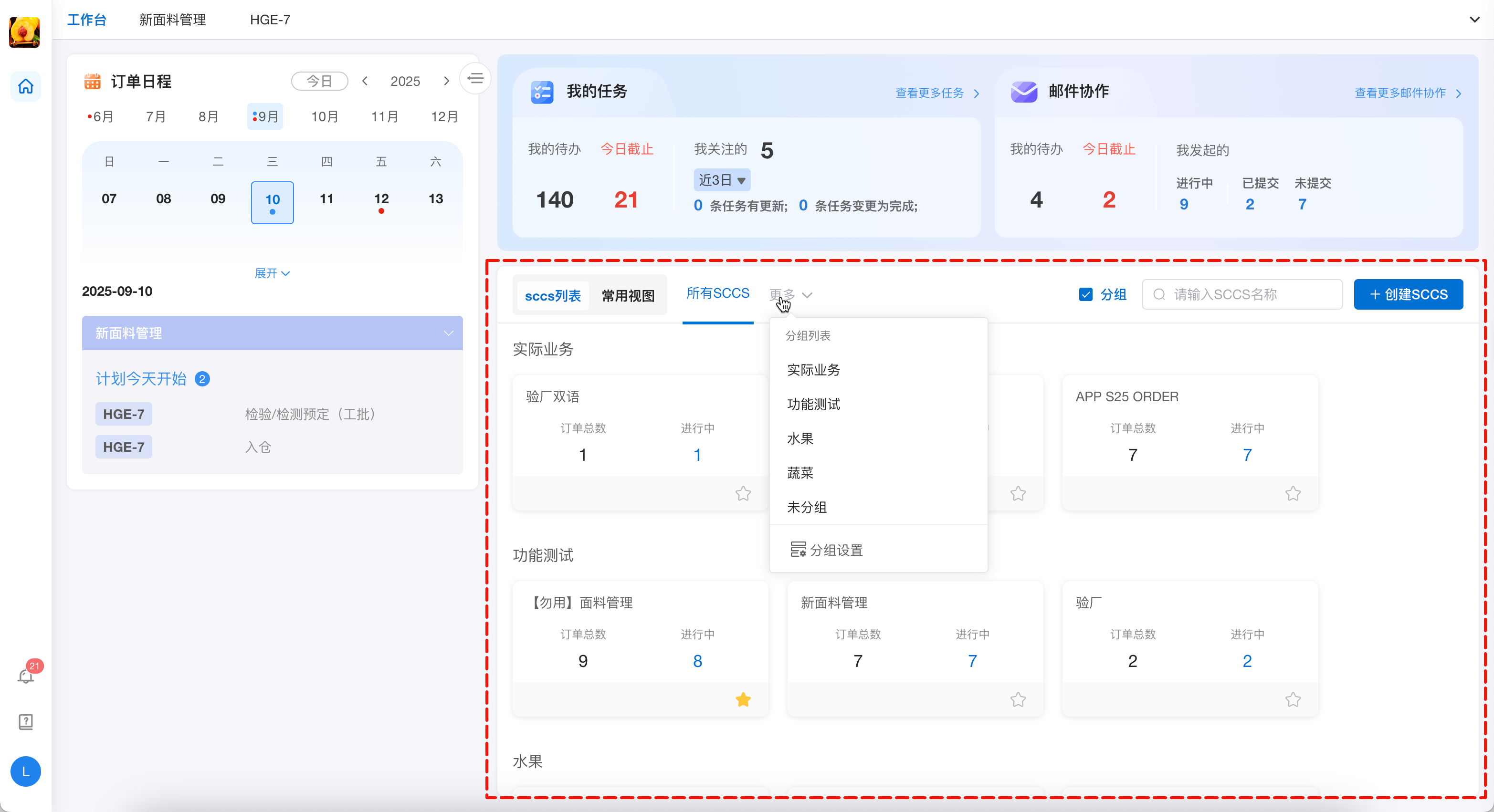
Content Display: The SCCS list clearly shows all SCCS that the current user participates in collaborating or managing. Each SCCS entry displays its name, as well as key information such as the total number of orders and the number of ongoing orders (each user sees the corresponding quantity based on their order permissions). This allows for an intuitive understanding of the collaboration status of each SCCS, making it easy to quickly lock in the target collaboration space.
Fuzzy Search: In the search box above the SCCS list, enter partial keywords of the SCCS name, and the system will immediately perform a fuzzy match to quickly filter out relevant SCCS. This greatly improves the efficiency of finding specific collaboration spaces and avoids the hassle of searching through numerous SCCS one by one.
Group Display: Under the [All SCCS] category, the interface checks the "Group" option by default, and SCCS will be displayed according to the configured grouping. Click the "More" dropdown button next to "All SCCS" to view the group list, select to switch to a specific group to focus on the SCCS within that group; you can also enter "Group Settings" to manage SCCS groups (limited to authorized members).
2.2 Group Management (Limited to Authorized Members)
- Group Settings
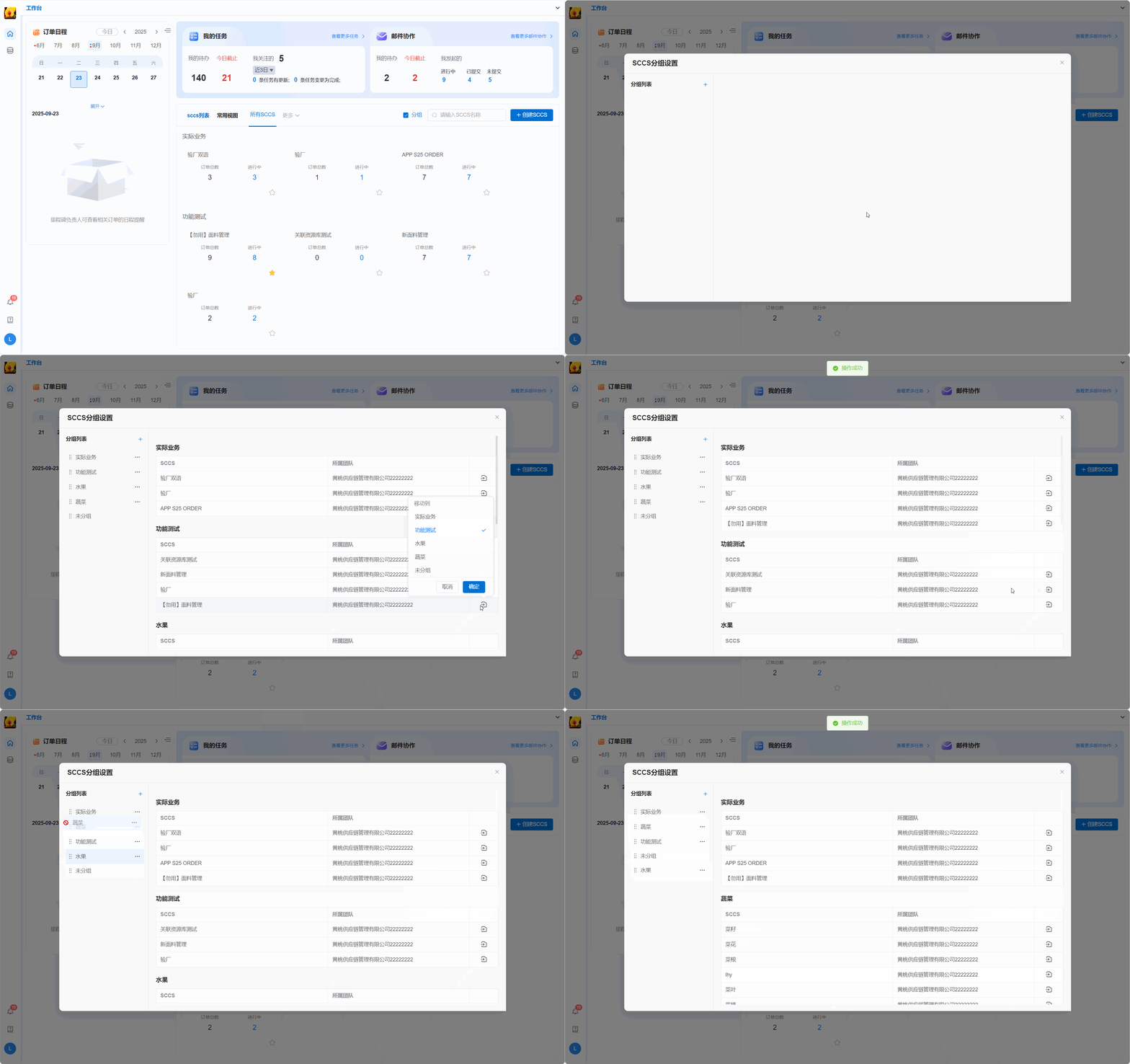
Members with SCCS group management permissions can click "Group Settings" in "More" to group all SCCS according to actual management needs (such as by business type, project stage, etc.). After grouping, other members of the team will view the SCCS they participate in under the corresponding groups according to the grouping results, making the organization of SCCS more logical and facilitating team collaboration management.
- Group Switching
By default, the content under the "All SCCS" group is displayed, showing all SCCS that the user participates in. Under this group, you can choose whether to display by group. 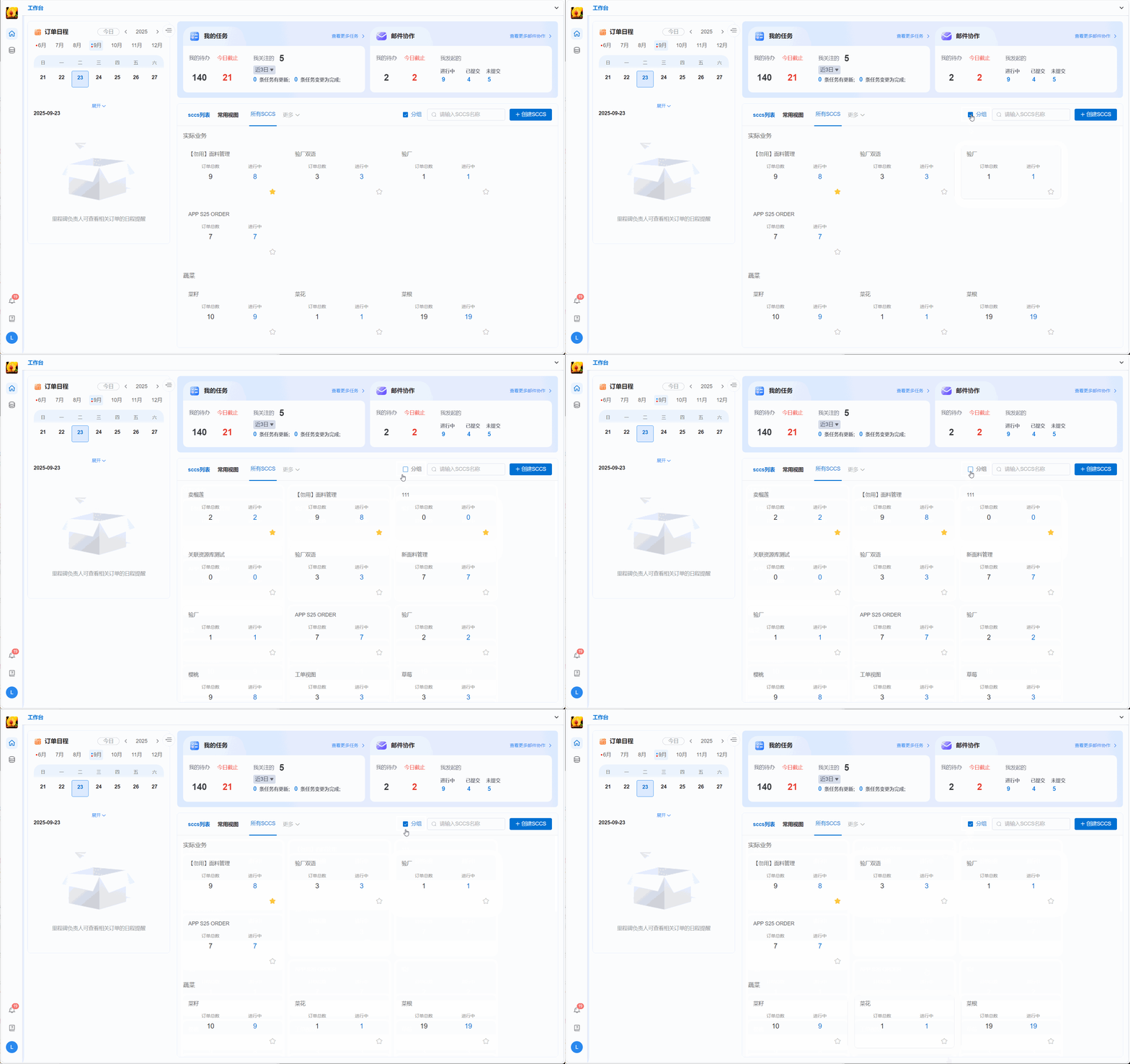
At the same time, you can also click to switch to a specific group through the "More" dropdown menu to focus on the SCCS within that group. 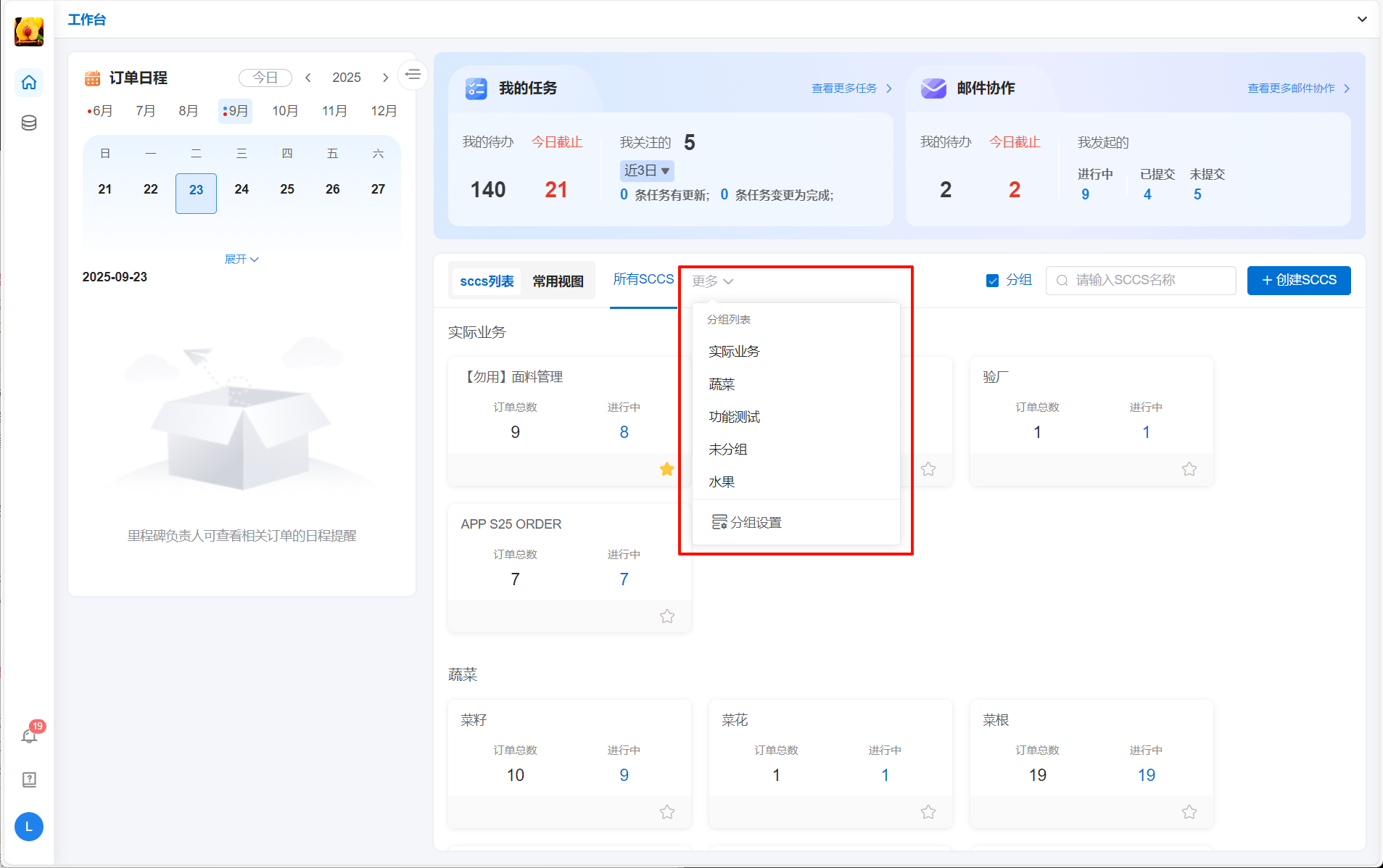
2.3 Star Pinning
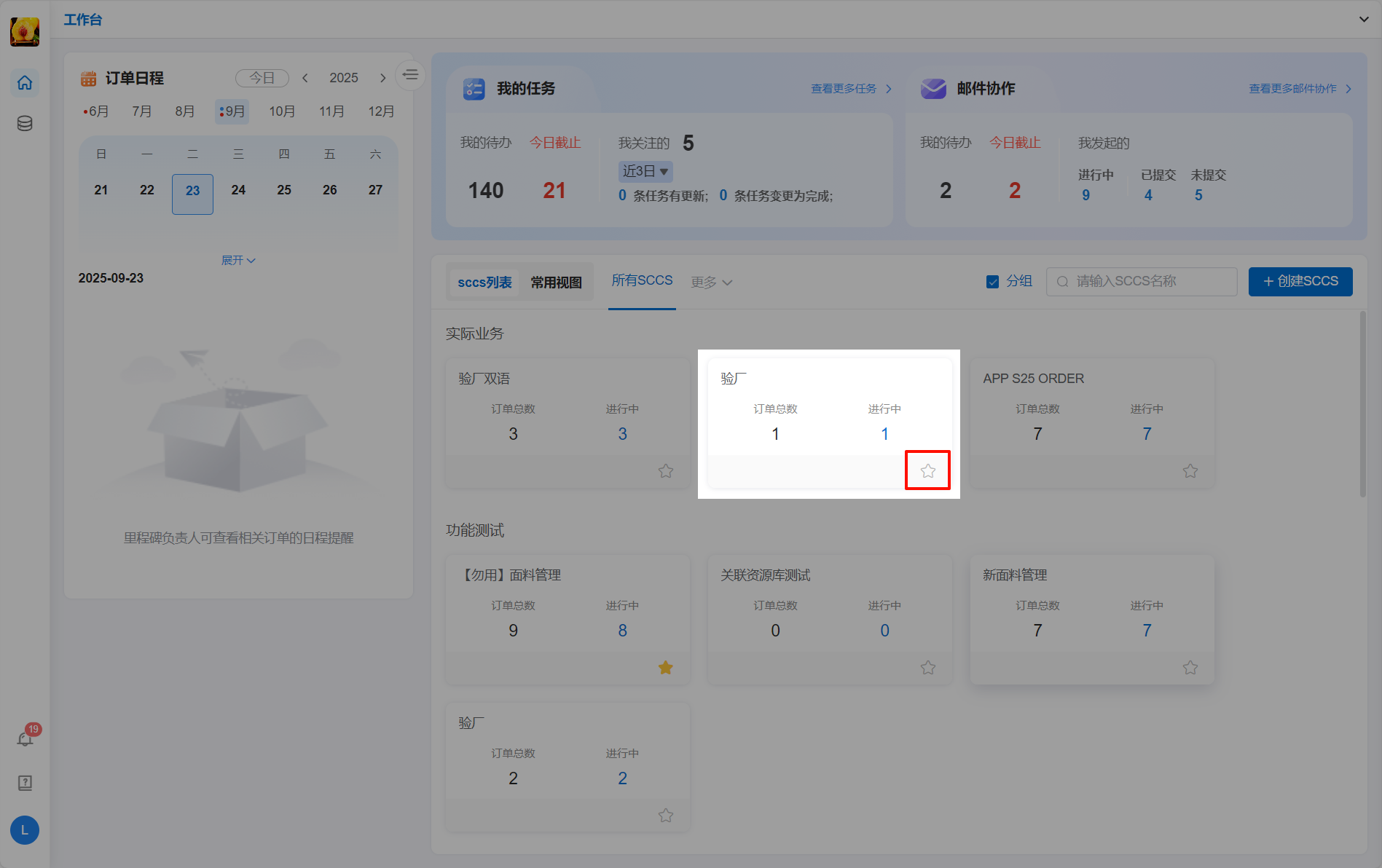
In the lower right corner of each SCCS entry, there is a star icon. For SCCS that need to be focused on, click the star icon, and the SCCS will be displayed in the front position of the list, making it easy for users to quickly find and access core collaboration spaces among many SCCS, reducing search time.
3 Frequently Used Views
3.1 Content Display
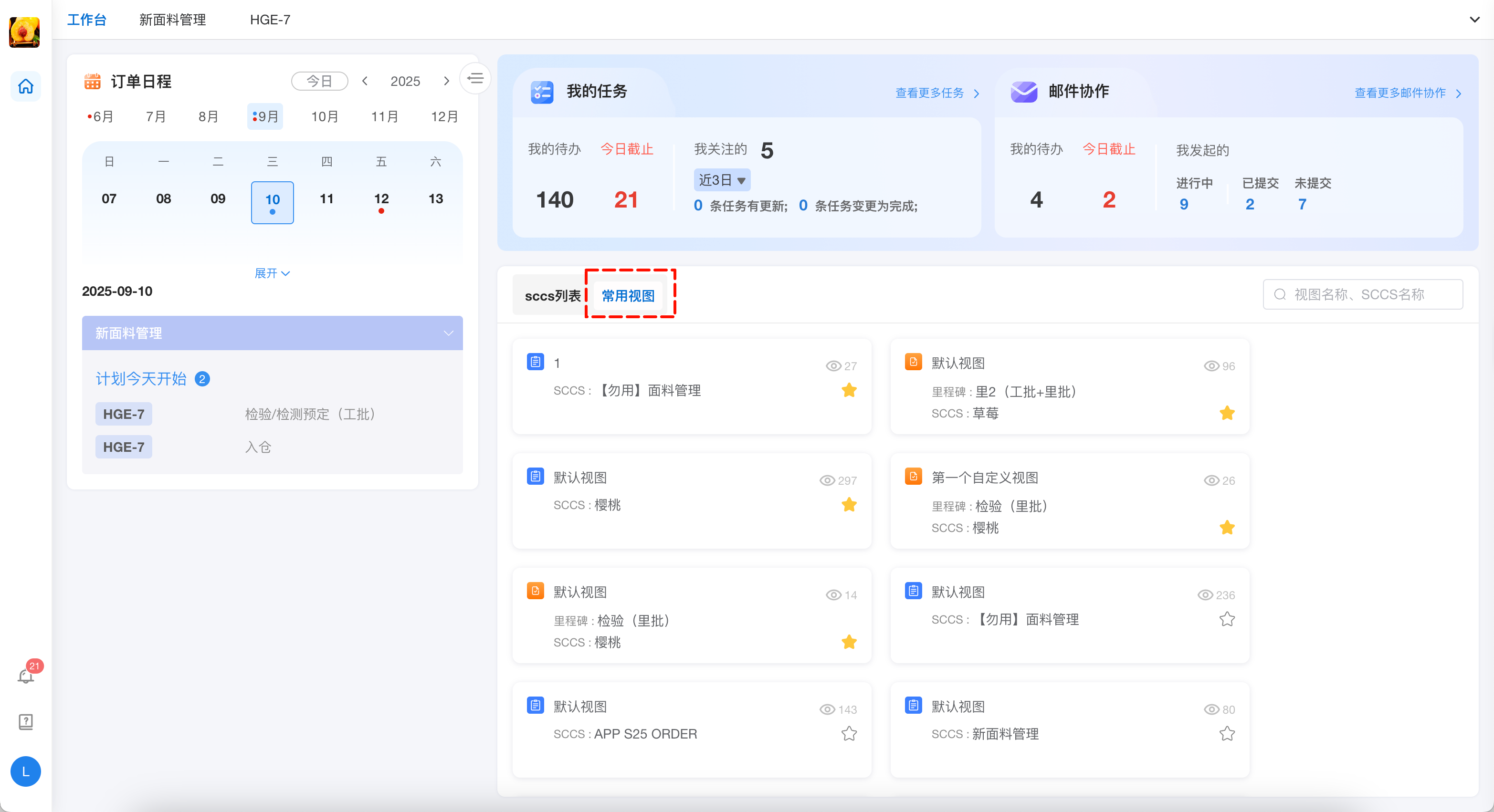
Click the "Frequently Used Views" tab to view the aggregated order views or work order views that users often access in each SCCS. The system will display frequently used views based on the user's access frequency, allowing users to quickly enter high-frequency collaboration scenarios without searching through layers within the SCCS, improving operational convenience.
3.2 Star Pinning
Users can star the views that need to be accessed quickly and focused on in the corresponding list views. Starred views will be displayed at the top of the frequently used views, further shortening the path for users to access the views and enabling high-frequency and important collaboration operations to be carried out more efficiently.